|
ScoutLogic SOP - How to Use | |
|
Department: Onboarding | |
|
Drafted by: Vippi Nguyen |
Date: 9/26/2022 |
Log in
Link for ScoutLogic login : https://scoutlogic.instascreen.net/sso/login.taz
Input your username/password
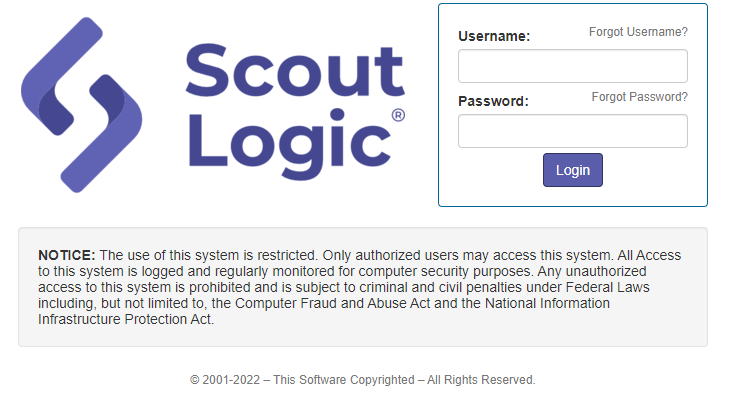
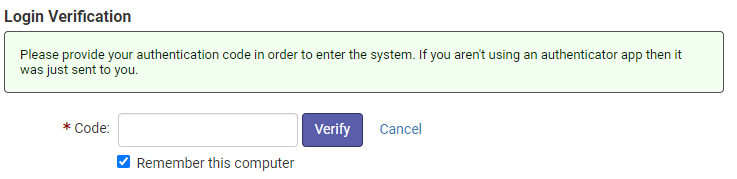
Open your DUO Application to verify and input the 6-digits passcode. (note: the passcode will change after every 30sec)
To file a NEW ORDER for you candidate:
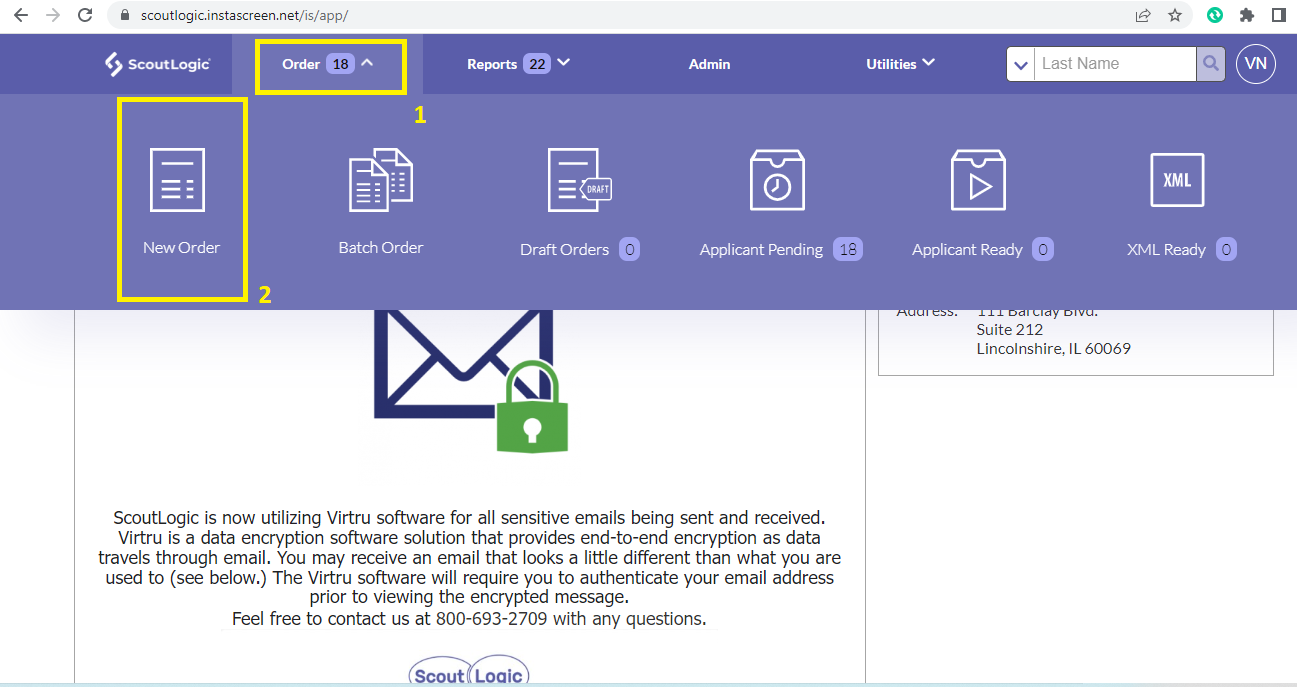
On your main screen, go to Order , choose New Order
Select the correct client package for your candidate.
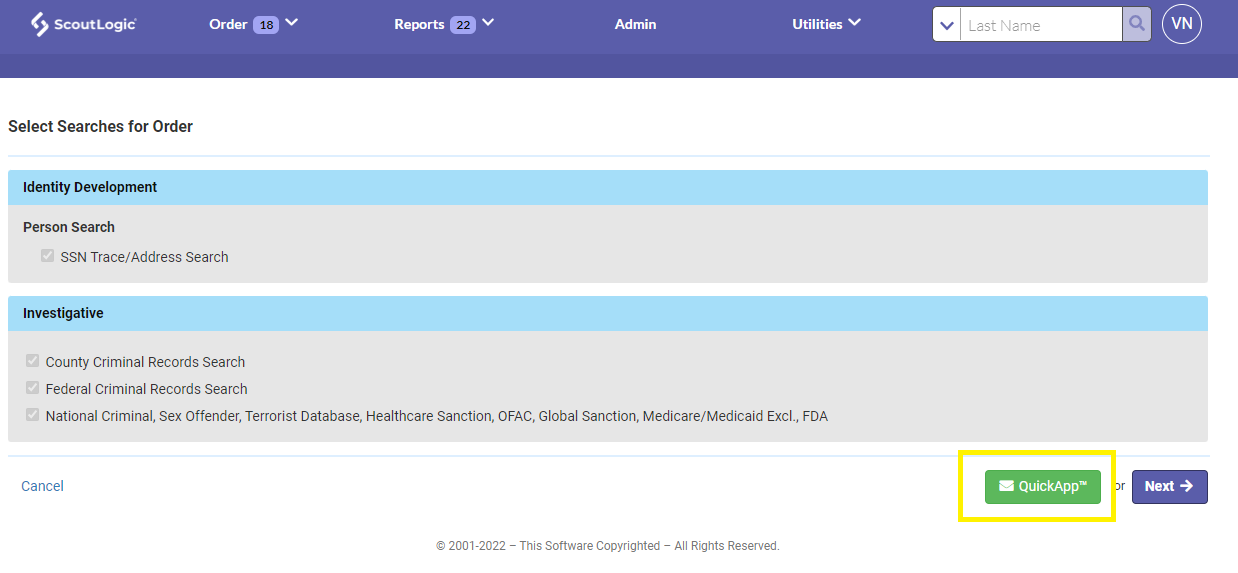
Choose QUICK APP
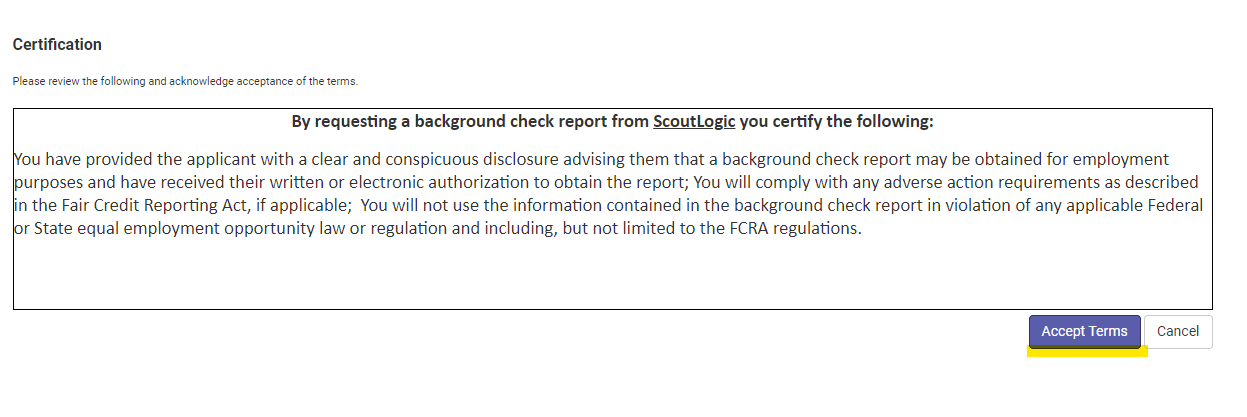
Then Accept Terms.
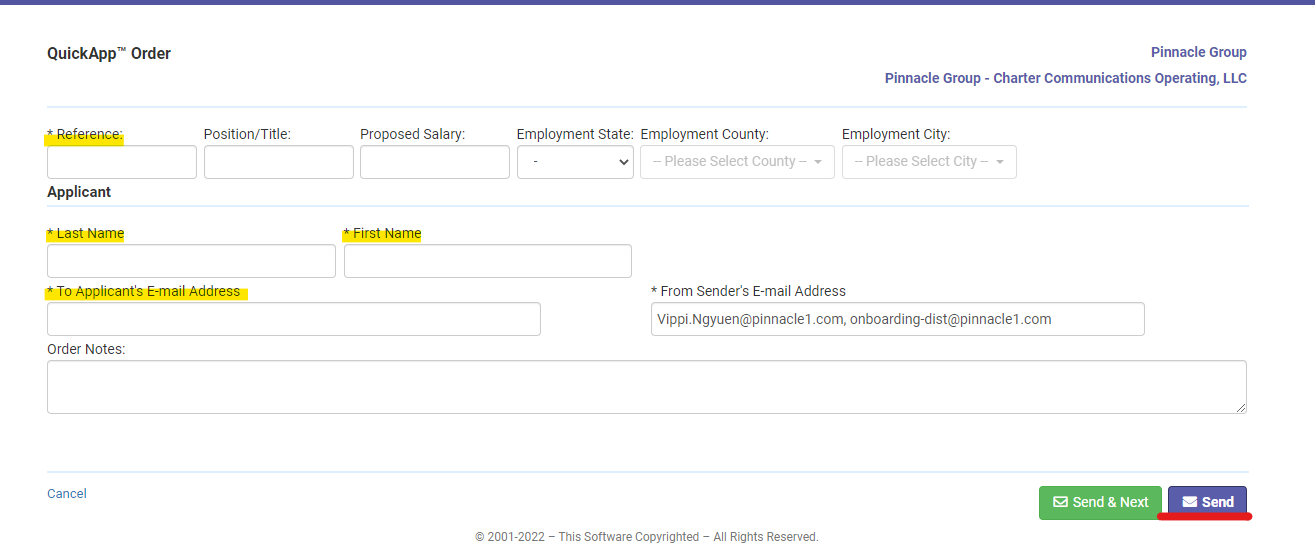
Input Reference, Last Name, First Name and Email Address of your candidate.
Then click SEND.
To search a for candidate:
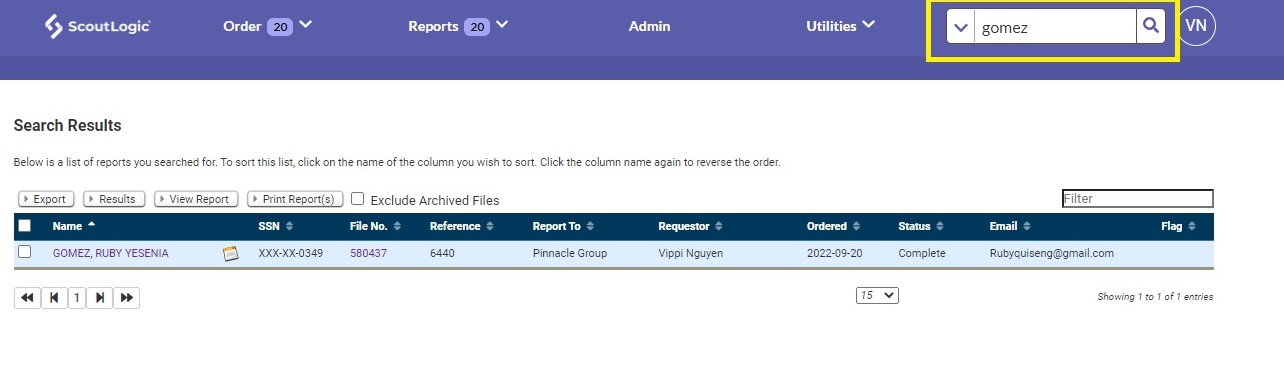
Search by Last Name in the box
The result should pop-up right below with all the details.
To view a existing report :
Click in the name of the report to view.
All the information & current status of the background screen will be show up here.
- (Please NOTE and make sure the status is Complete when clearing a candidate)
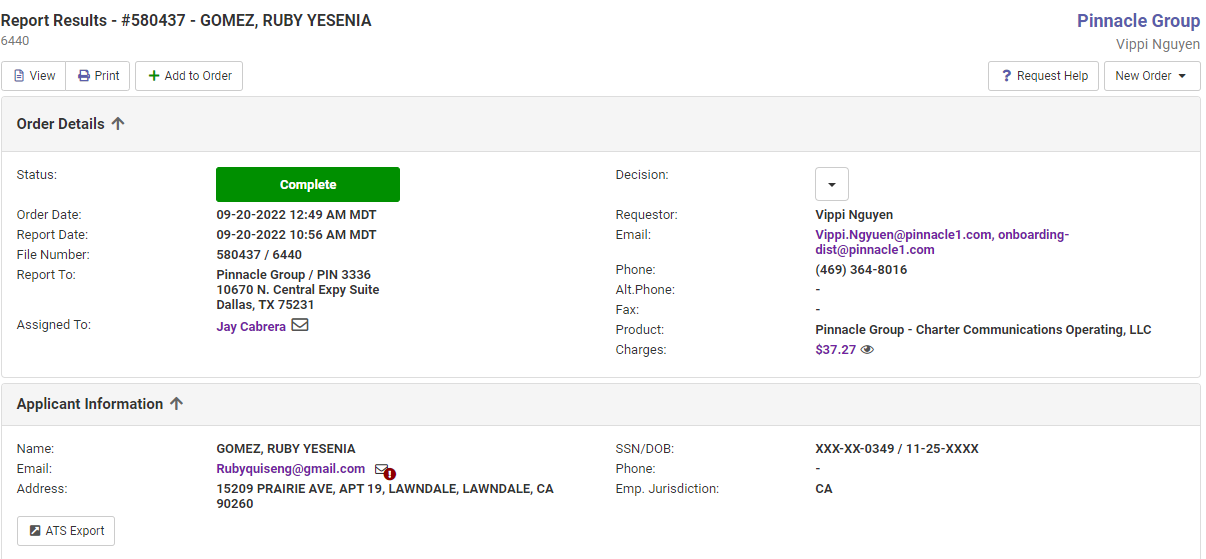
To ask for help or send a request regarding the background screen:
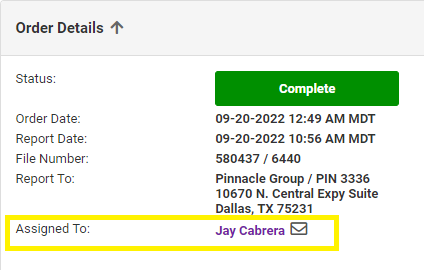
Click on the name that is assigned in the report. You will get the email address you need to reach out for further assistance.
|
ScoutLogic SOP – Viewing result | |
|
Department: Onboarding | |
|
Drafted by: Leah Basmayor |
Date: 9/21/2022 |
WITH ALERT
Overview
The Fair Credit Report (FCRA) states that if you run a background check on a candidate, it reveals adverse information that may prevent you from hiring them. You are required to send that candidate a Pre adverse action Letter. This letter alerts the candidate that there is adverse action on their report that may prevent you from hiring them. Provides them with a copy of the summary of rights under the FCRA and a copy of the FULL completed report to review. This will take 5 days and if the candidate does not file a dispute, you will now send the Final adverse action.
 When an ALERT is pulled in the report (such as in the below picture) and there is a PURPLE FLAG on the left side it means that this search will need to be reviewed.
You need to ensure that the Status of the background check is COMPLETE before sending the
- report to Molly or Sabrina for guidance.

When sending the report, you need to download the full completed report to review.
Downloading the Full Report
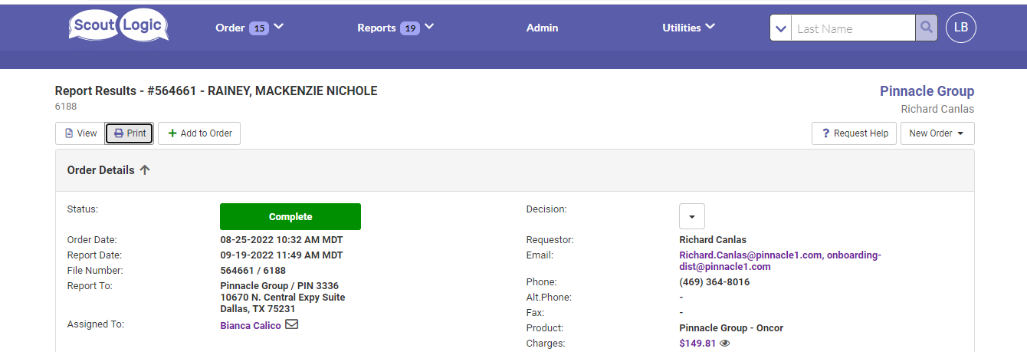 Go to the main page of your candidate’s profile
Click print and saved

How to Initiate Pre and Final Adverse Action- with no additional specific information
Some areas may require additional information some are not.
Go to Disclosures and Forms- scroll to the bottom and select the PRE-ADVERSE ACTION LETTER
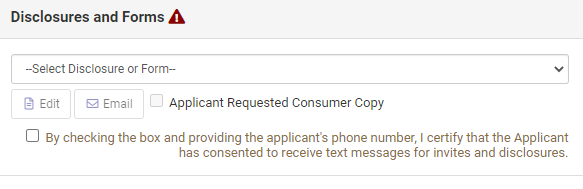
Click Email and a question will prompt you to ask you if “Are you sure you want to send the Disclosure?” hit Yes.
The email link has been sent to the candidate. You may also check the date and time stamp under Client Notes. The turnaround time for the adverse action is 5 business days. After which, you will now send the Final Adverse Action.
As mentioned above that there are some areas and locations that will require specific information. Refer to the below list.
Jurisdictions that have Special requirements
California- San Francisco (Not Los Angeles)New York (Not NYC)
IllinoisOregon- Portland Pennsylvania- PA
Maryland- Montgomery, Prince GeorgeTexas - Austin
MassachusettsWashington- Seattle
New JerseyCalifornia- Los Angeles- Process Manually
New York City – Must process Manually
How to Initiate Pre and Final Adverse Action- with an additional specific information
Go to Disclosures and Forms- scroll to the bottom and select the PRE-ADVERSE ACTION LETTER

 As you can see, the “Email” button is longer in there. Click Edit and it will give you a pop-up box.
Now, you need to fill out the Required information. Identify the Specific Criminal History (the alert that was pulled up) and the reason why we are not hiring them. Then saved.
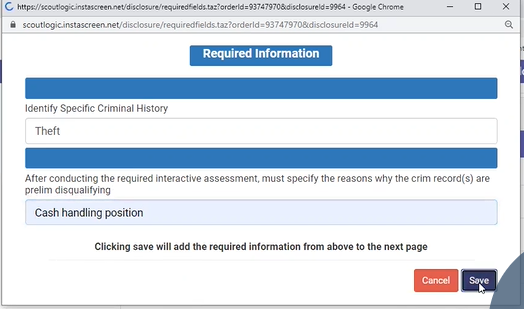
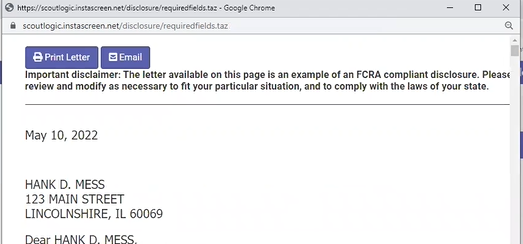
After you hit save, you can review if the information is populated. Then click “Email” the same way that you will do when sending the Final Adverse Action.
|
ScoutLogic SOP - How to Use | |
|
Department: Onboarding | |
|
Drafted by: Vippi Nguyen |
Date: 9/26/2022 |
Log in
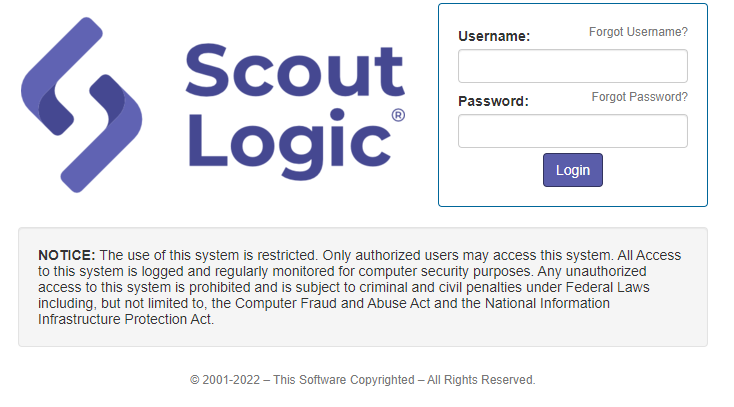
Link for ScoutLogic login : https://scoutlogic.instascreen.net/sso/login.taz
Input your username/password
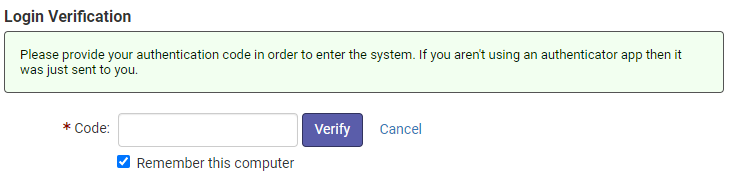
Open your DUO Application to verify and input the 6-digits passcode. (note: the passcode will change after every 30sec)
To file a NEW ORDER for you candidate:
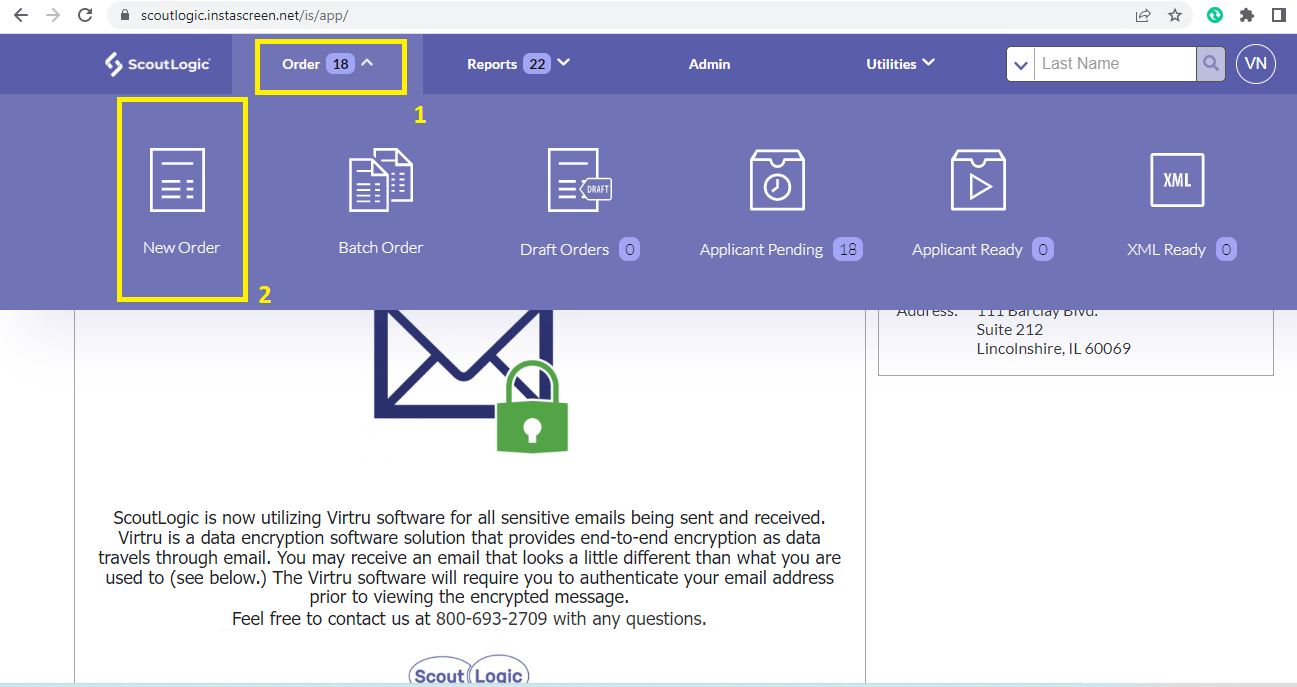
On your main screen, go to Order , choose New Order
Select the correct client package for your candidate.
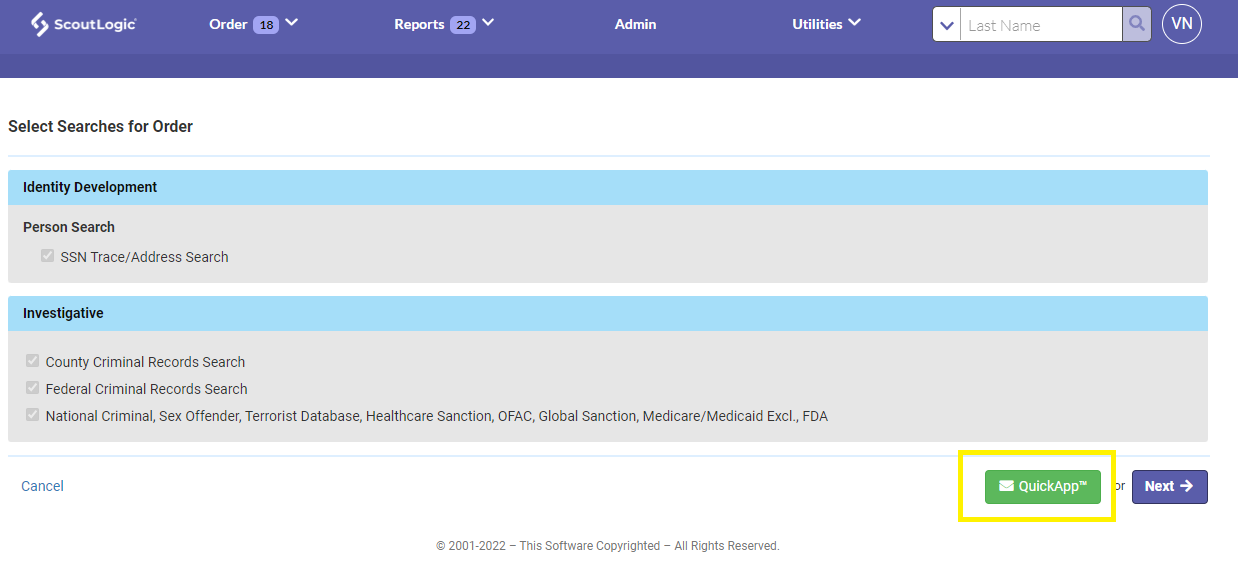
Choose QUICK APP
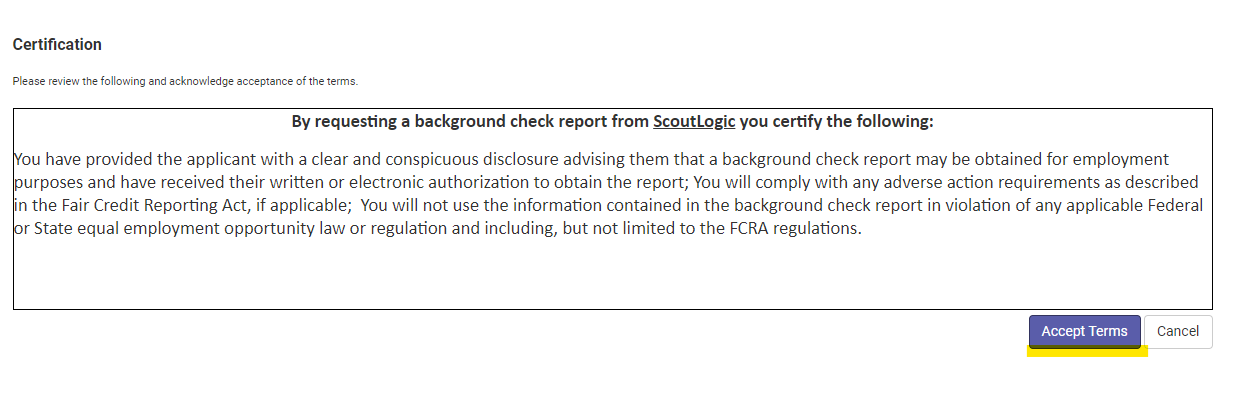
Then Accept Terms.
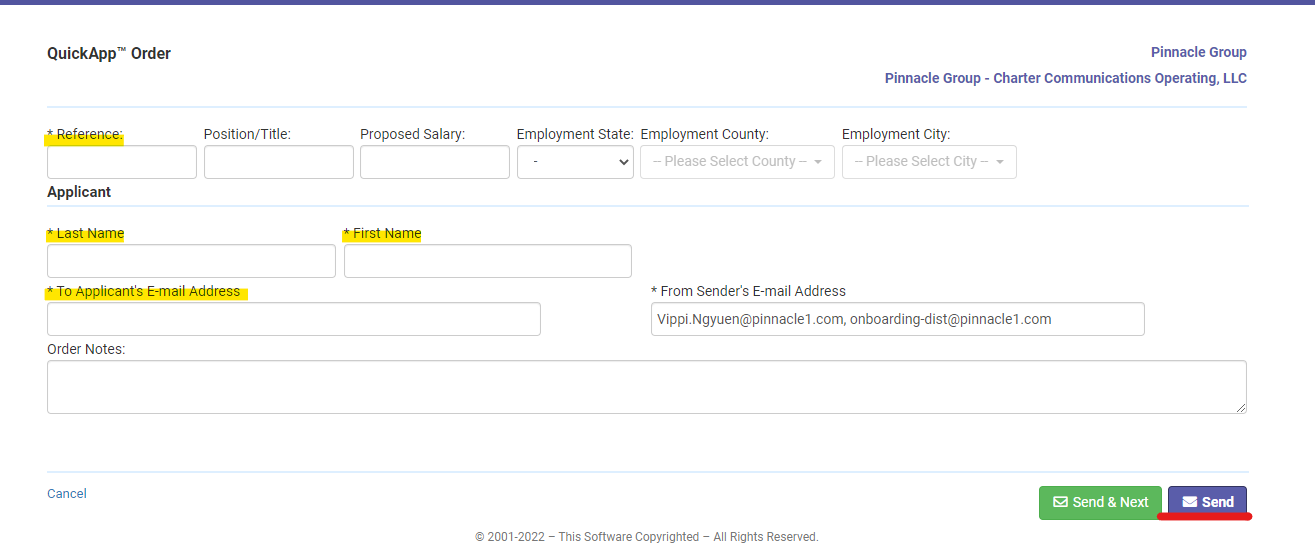
Input Reference, Last Name, First Name and Email Address of your candidate.
Then click SEND.
To search a for candidate:

Search by Last Name in the box
The result should pop-up right below with all the details.
To view a existing report :
Click in the name of the report to view.
All the information & current status of the background screen will be show up here.
- (Please NOTE and make sure the status is Complete when clearing a candidate)
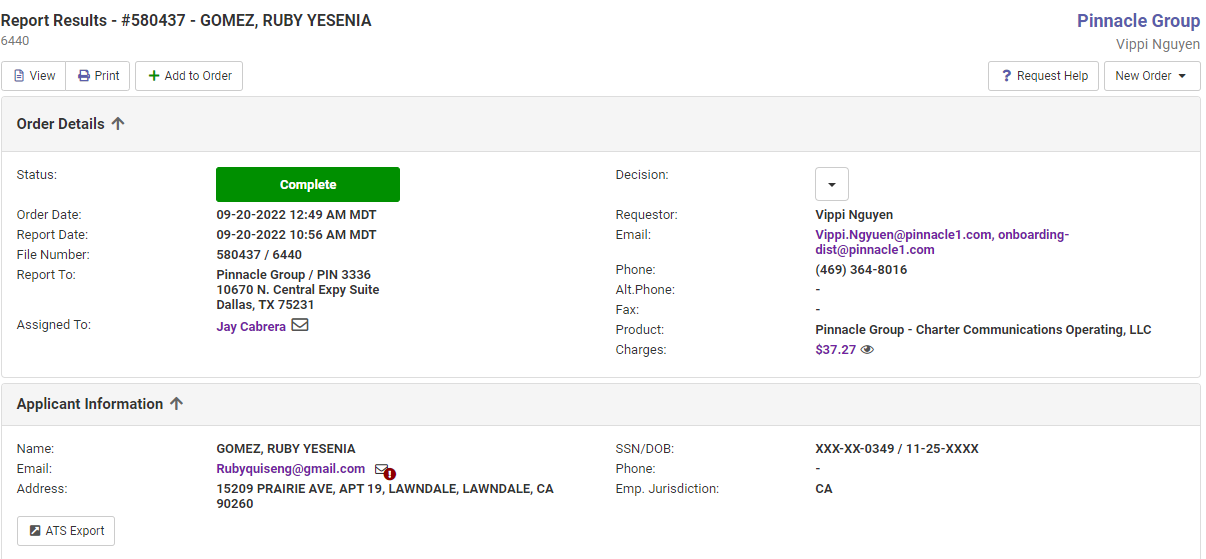
To ask for help or send a request regarding the background screen:
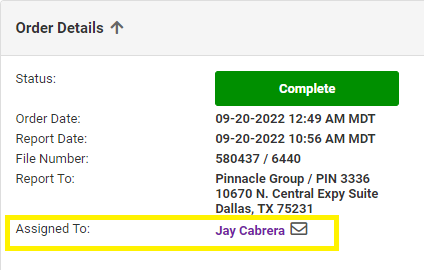
Click on the name that is assigned in the report. You will get the email address you need to reach out for further assistance.
|
ScoutLogic SOP – Viewing result | |
|
Department: Onboarding | |
|
Drafted by: Leah Basmayor |
Date: 9/21/2022 |
WITH ALERT
Overview
The Fair Credit Report (FCRA) states that if you run a background check on a candidate, it reveals adverse information that may prevent you from hiring them. You are required to send that candidate a Pre adverse action Letter. This letter alerts the candidate that there is adverse action on their report that may prevent you from hiring them. Provides them with a copy of the summary of rights under the FCRA and a copy of the FULL completed report to review. This will take 5 days and if the candidate does not file a dispute, you will now send the Final adverse action.
 When an ALERT is pulled in the report (such as in the below picture) and there is a PURPLE FLAG on the left side it means that this search will need to be reviewed.
You need to ensure that the Status of the background check is COMPLETE before sending the
- report to Molly or Sabrina for guidance.

When sending the report, you need to download the full completed report to review.
Downloading the Full Report
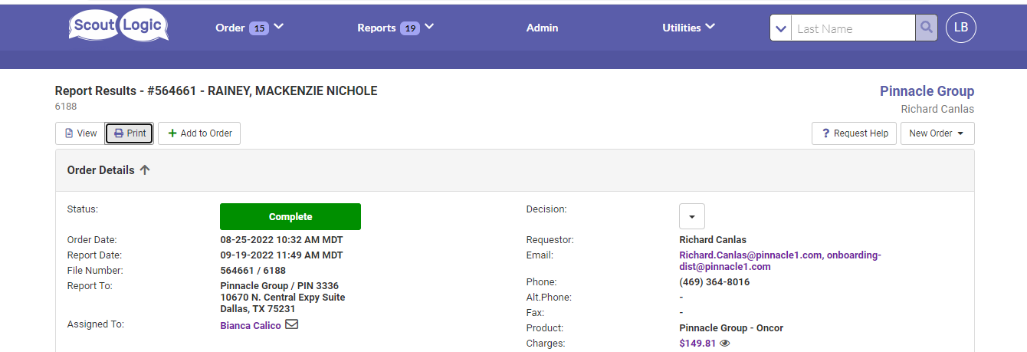 Go to the main page of your candidate’s profile
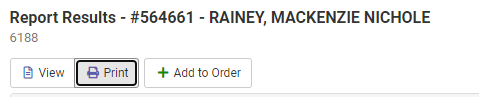
Click print and saved
How to Initiate Pre and Final Adverse Action- with no additional specific information
Some areas may require additional information some are not.
Go to Disclosures and Forms- scroll to the bottom and select the PRE-ADVERSE ACTION LETTER
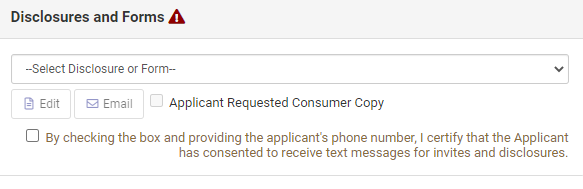
Click Email and a question will prompt you to ask you if “Are you sure you want to send the Disclosure?” hit Yes.
The email link has been sent to the candidate. You may also check the date and time stamp under Client Notes. The turnaround time for the adverse action is 5 business days. After which, you will now send the Final Adverse Action.
As mentioned above that there are some areas and locations that will require specific information. Refer to the below list.
Jurisdictions that have Special requirements
California- San Francisco (Not Los Angeles)New York (Not NYC)
IllinoisOregon- Portland Pennsylvania- PA
Maryland- Montgomery, Prince GeorgeTexas - Austin
MassachusettsWashington- Seattle
New JerseyCalifornia- Los Angeles- Process Manually
New York City – Must process Manually
How to Initiate Pre and Final Adverse Action- with an additional specific information
Go to Disclosures and Forms- scroll to the bottom and select the PRE-ADVERSE ACTION LETTER
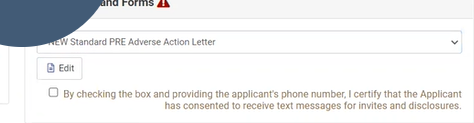
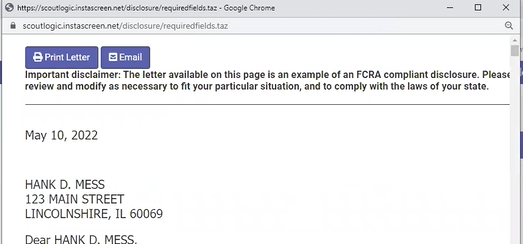
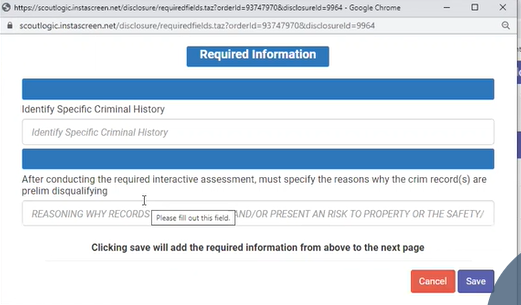 As you can see, the “Email” button is longer in there. Click Edit and it will give you a pop-up box.
Now, you need to fill out the Required information. Identify the Specific Criminal History (the alert that was pulled up) and the reason why we are not hiring them. Then saved.
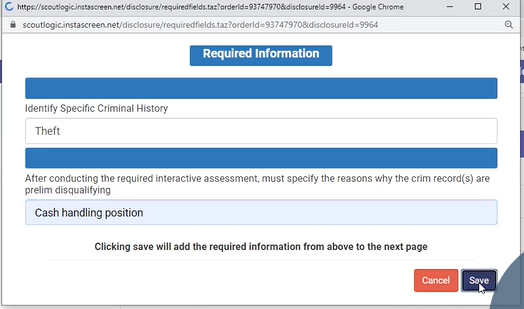
After you hit save, you can review if the information is populated. Then click “Email” the same way that you will do when sending the Final Adverse Action.
- Teacher: dawn torralba
- Teacher: dawn torralba